Government agencies communicate via .gov.sg websites (e.g. go.gov.sg/open). Trusted websites
Secure websites use HTTPS
Look for a lock () or https:// as an added precaution. Share sensitive information only on official, secure websites.
Welcome to the new ACRA website (test version)
1. Share your feedback via our short survey. 2. [Advisory] Government officials will NEVER ask you to transfer money or disclose bank log-in details over a phone. Call the 24/7 ScamShield Helpline at 1799 if you are unsure if something is a scam.
This page is under development and being progressively updated.
Note: Share transactions are complex and errors can be costly. If you are unsure about share matters or how to file the correct share transactions in Bizfile, seek professional advice from a corporate service provider (CSP).
If you make an error during filing and cannot resolve it by filing a Notice of Error, you may need to obtain an Order of Court to amend the error.
What is share allotment
You can allot new shares for cash to raise your company's total share capital. You can also allot shares for other considerations (non-cash). Examples include:
Exchanging shares for dividend payments to a shareholder
Before you file
This guide explains how to file a return of share allotment to notify ACRA. After you allot new shares, you may need to file the return of allotment to update changes to your:
Public companies (not listed on the Singapore Exchange): List the 50 members with the most shares only (excluding treasury shares)
Required details for new shareholders:
Full name
Identification number
Nationality
Contact address
Must be in the same jurisdiction as thhe shareholder's residential address. For example, if the residential address is in Singapore, the contact address must also be in Singapore.
You can use the shareholder's residential address as the contact address.
Note: You cannot use a P.O. Box as a contact address.
Number and class of shares held
Supporting documents
Copy of resolution (if any)
Relevant documents for non-cash allotments, such as Contracts or Order of Court
Note: All entity and personal information (including UEN, entity details, NRIC or FIN numbers, names and addresses) shown are dummy data for illustration purposes only.
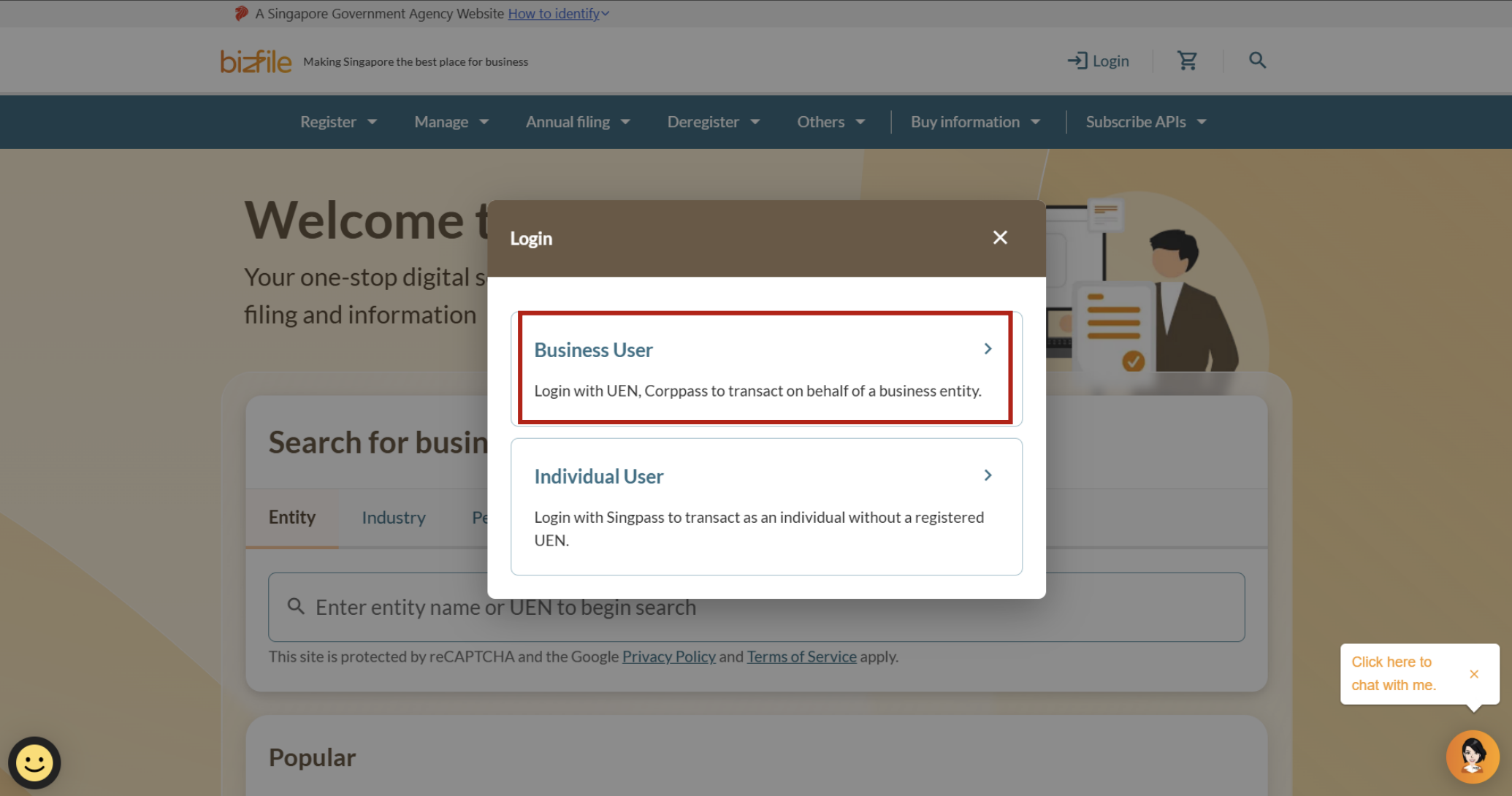
1. Click "Login" on the Bizfile homepage and select "Business User" to log in via Corppass.
2. Check that the correct entity name appears on the top menu bar and dashboard.
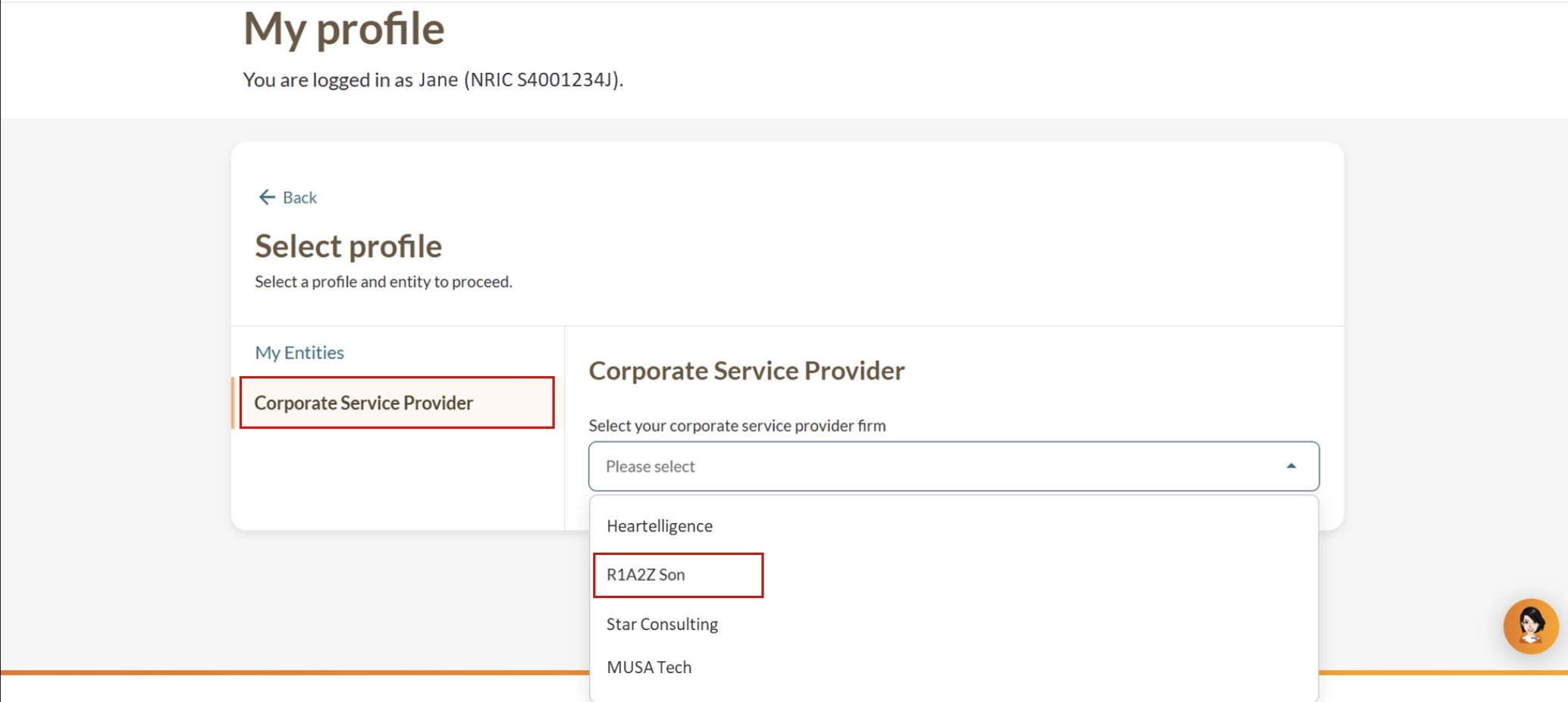
3. (CSP) On the "My profile – Select profile” page, click on the “Corporate Service Provider” tab. If you belong to more than one CSP firm, select your CSP firm from the dropdown list.
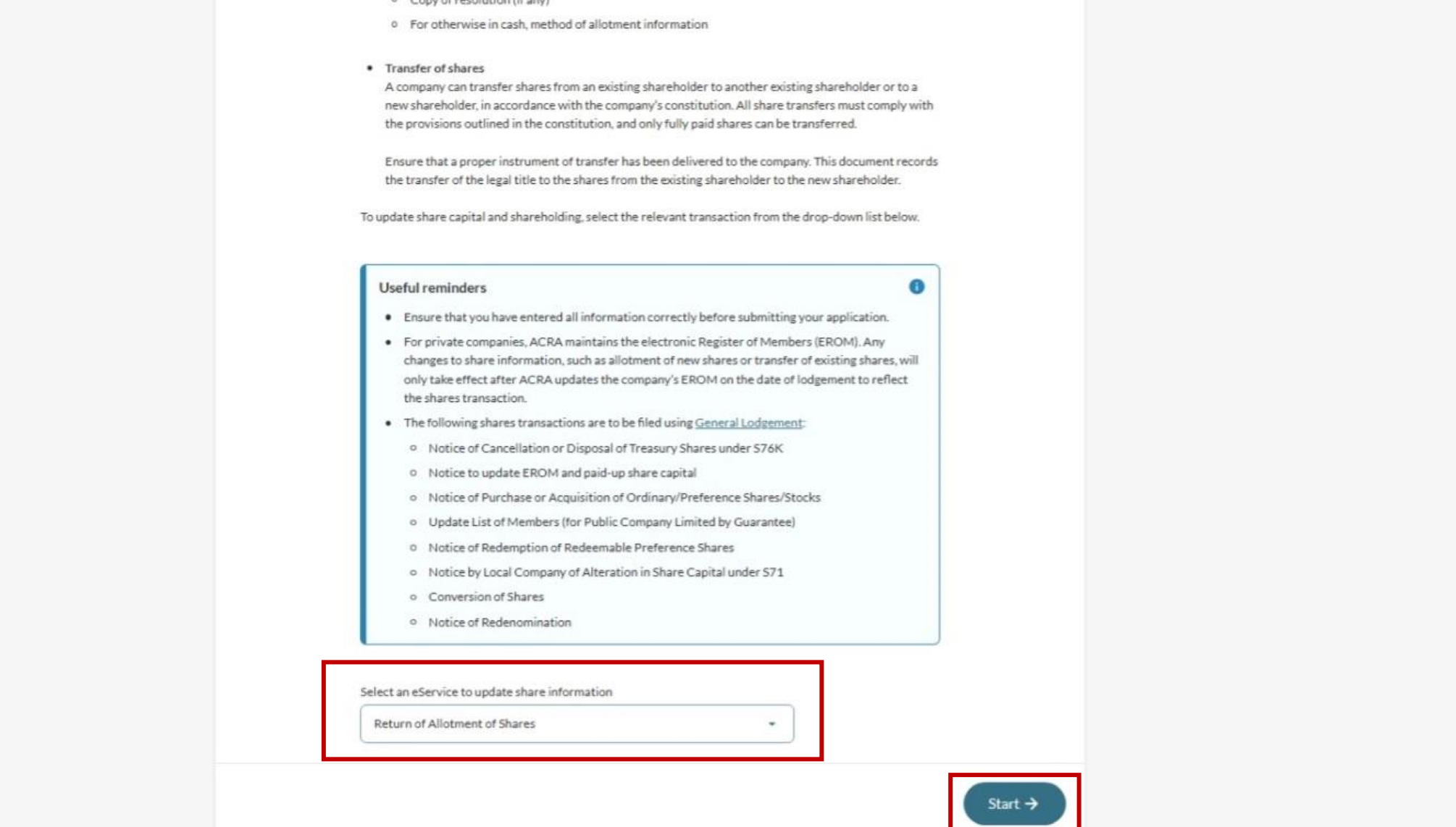
6. On the "Update shares information" page, select "Return of Allotment of shares" and click "Start".
Step 2: Verify entity details and file resolution under S161 (if applicable)
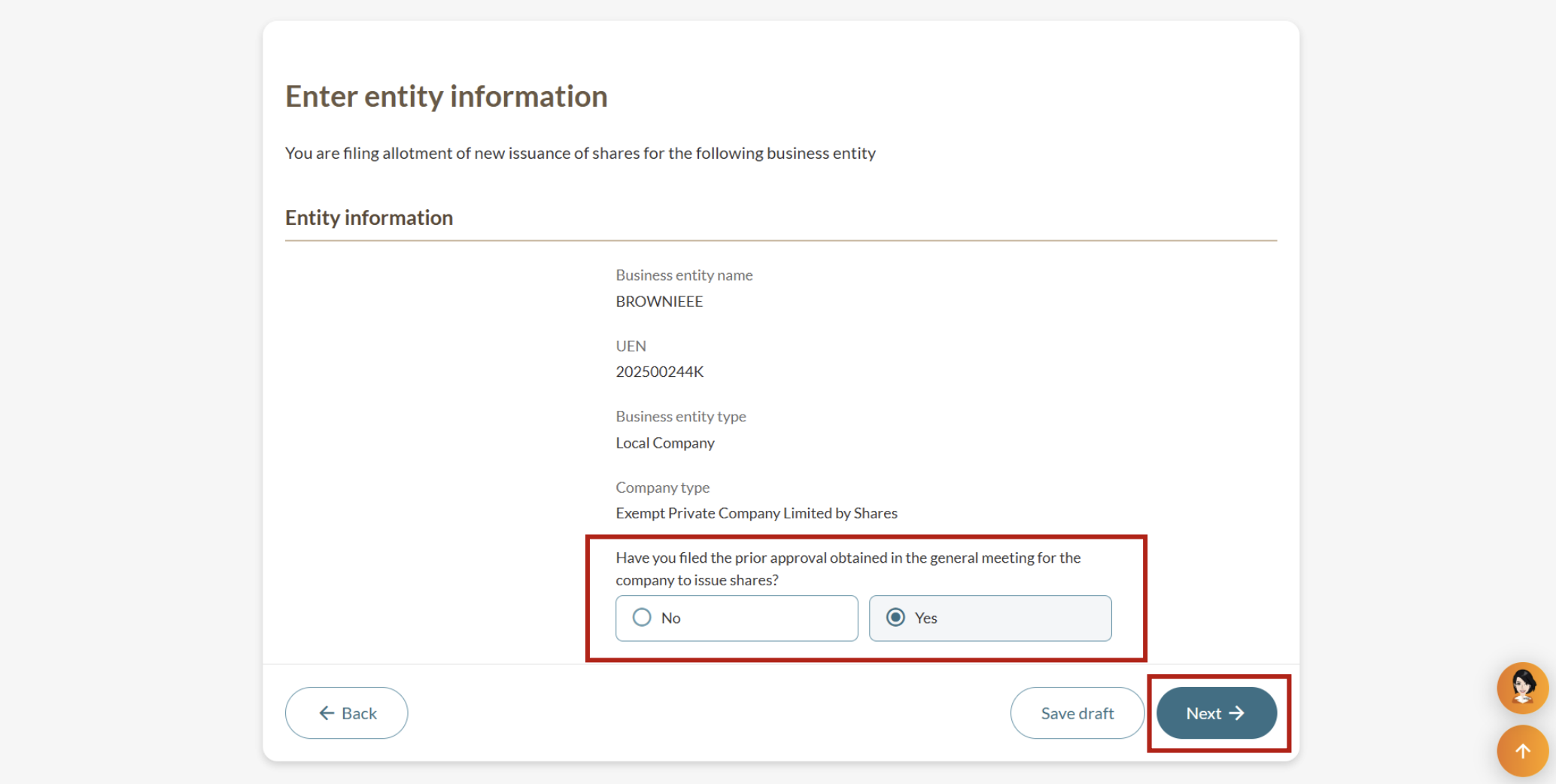
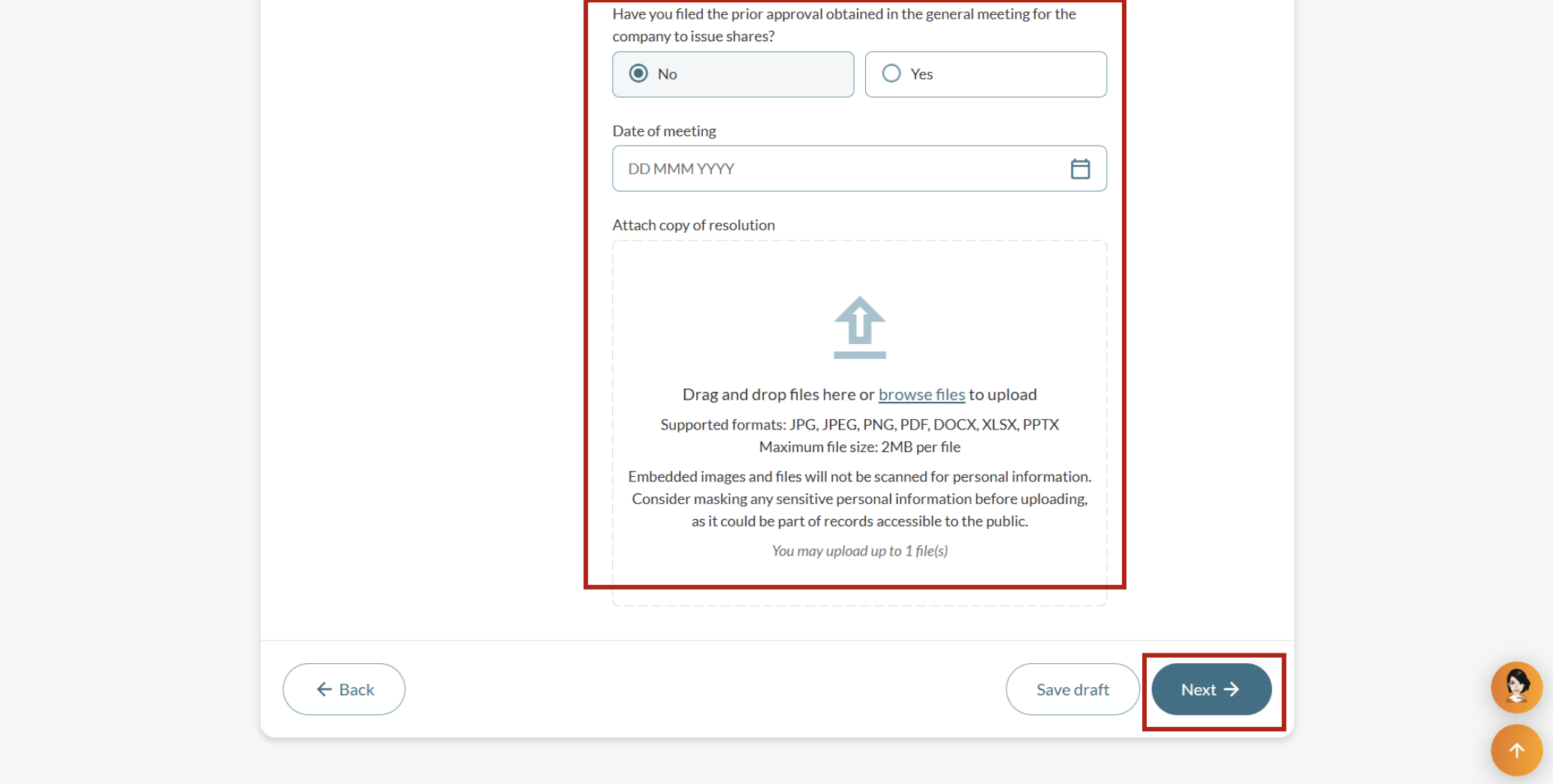
Ensure you are filing for the correct entity. If you have not filed the resolution (section 161) on approval for the company to issue shares, upload the resolution from your general meeting.
1. Check that your entity details are correct. Then, state whether you have filed prior approval from your general meeting to issue shares (resolution) and click "Next".
2. (No prior resolution filed) Enter the date of the meeting and upload the resolution. Then, click "Next".
Step 3: Enter share capital details
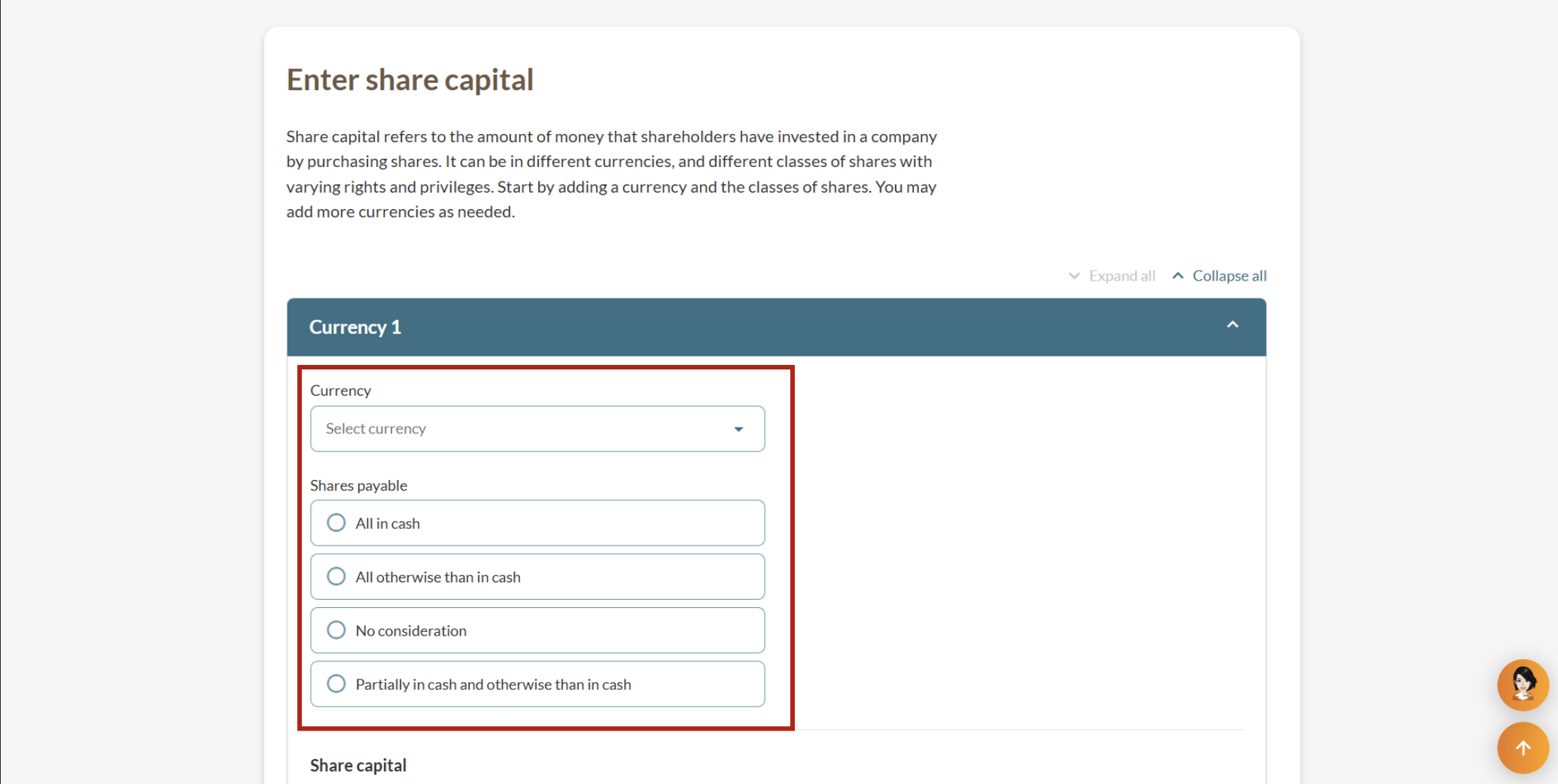
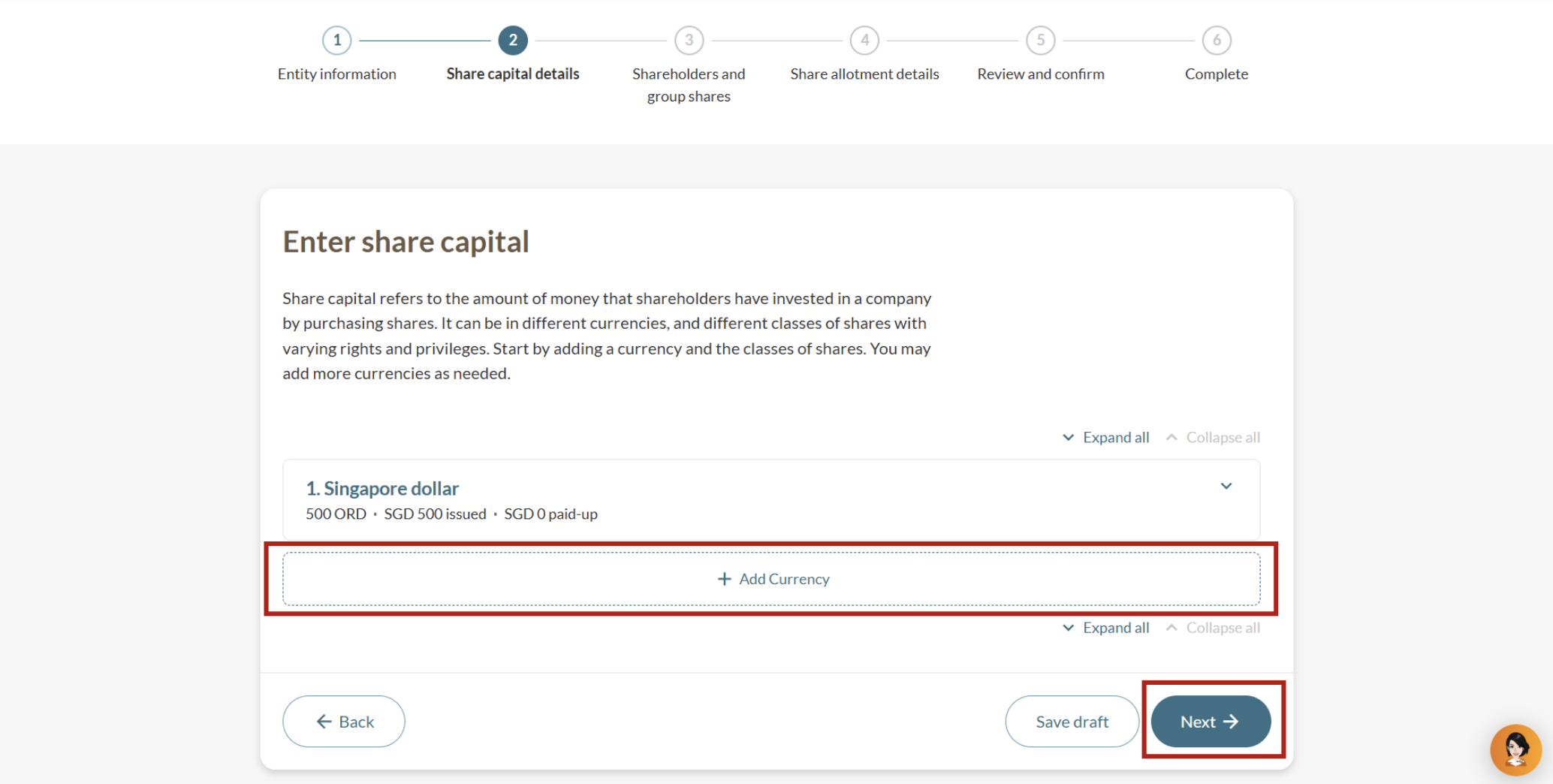
Share capital details include the currency type and shares payable option.
1. Select your share capital's currency type and state how the shares are payable.
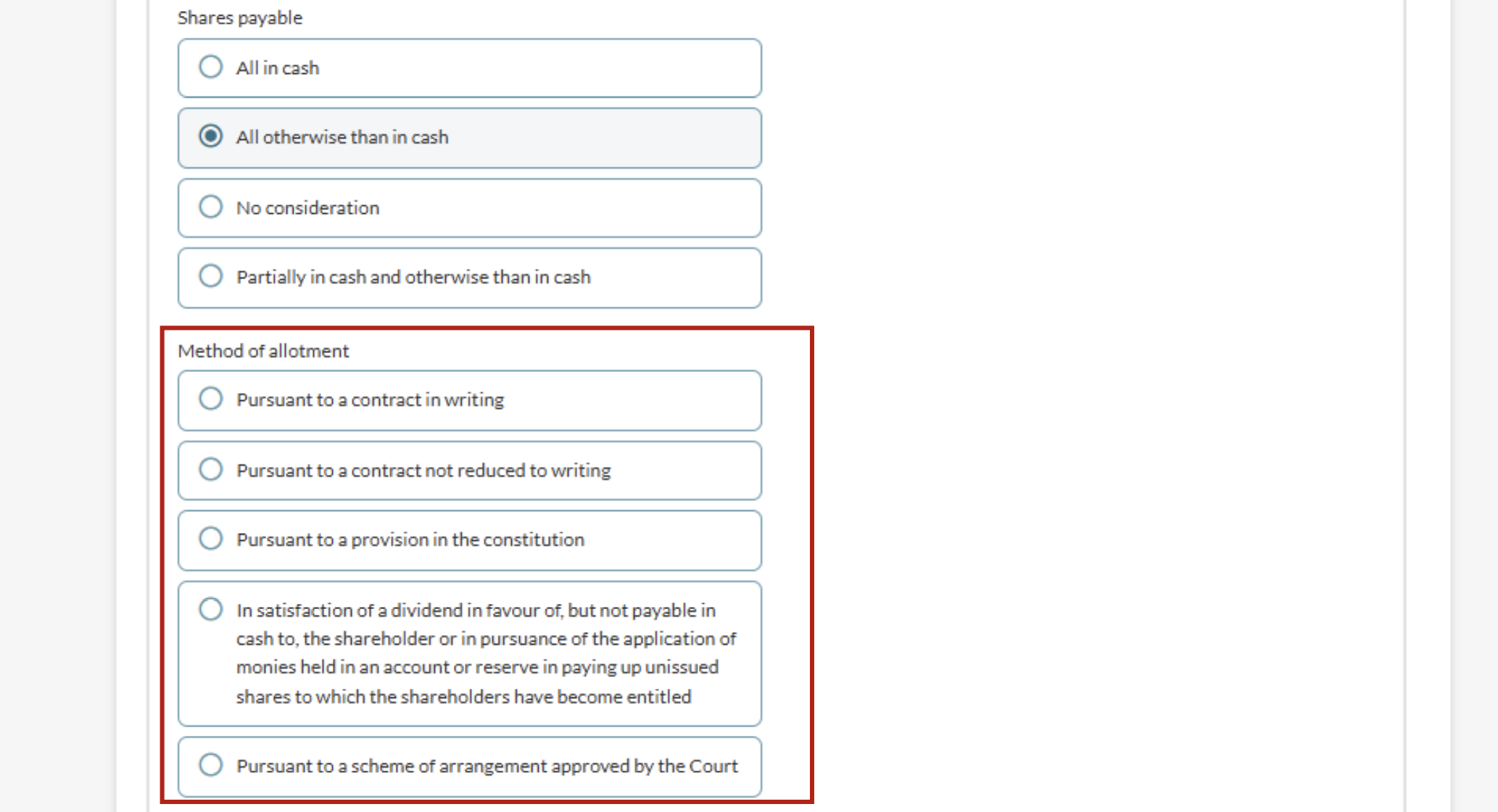
2. For shares payable "All otherwise than in cash" or "Partially in cash and otherwise than in cash", specify the allotment method.
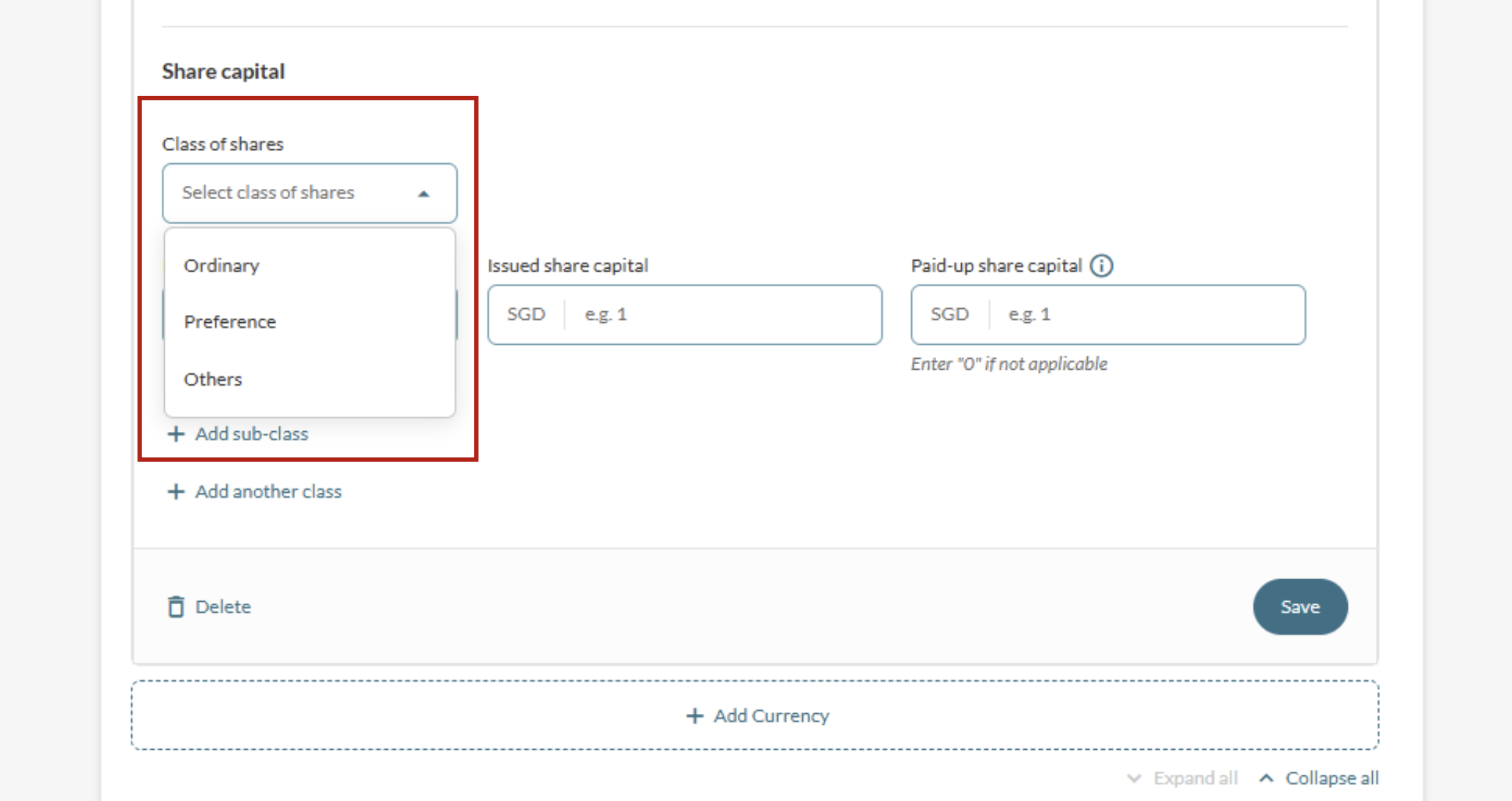
3. Select the class of shares to be allotted.
10. (If required) Click "Add Currency" to add another share capital currency. Enter the required information and click "Next".
Note: Treasury shares can only be added under the Ordinary class of shares.
(Optional) Step 4: Add new shareholders
You can add shareholders individually or create shareholder groups as needed.
If your shareholder structure remains unchanged, click Next to enter your share allotment details instead.
4a: Add shareholders individually
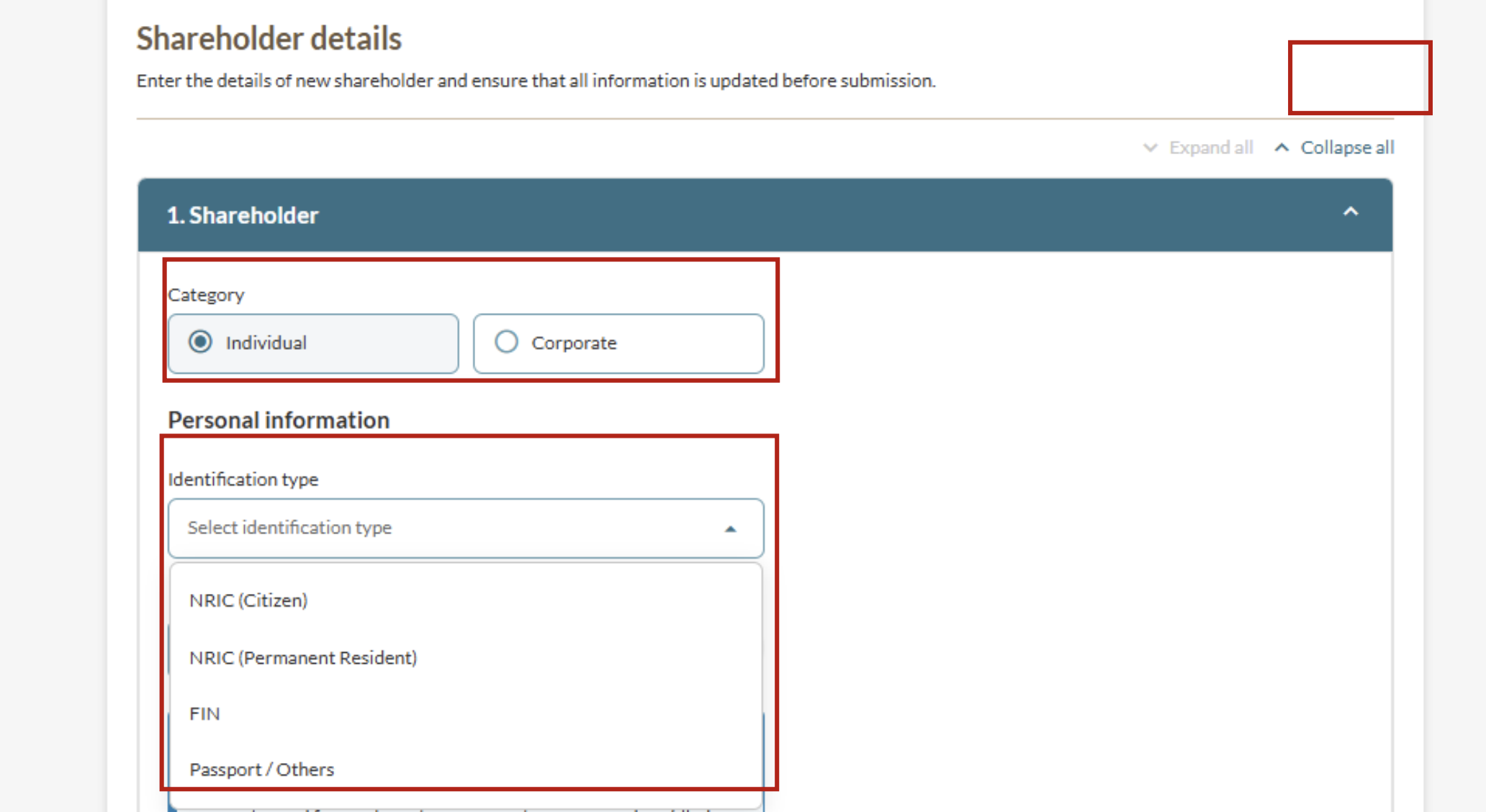
Follow these steps to add individual shareholders or corporate shareholders.
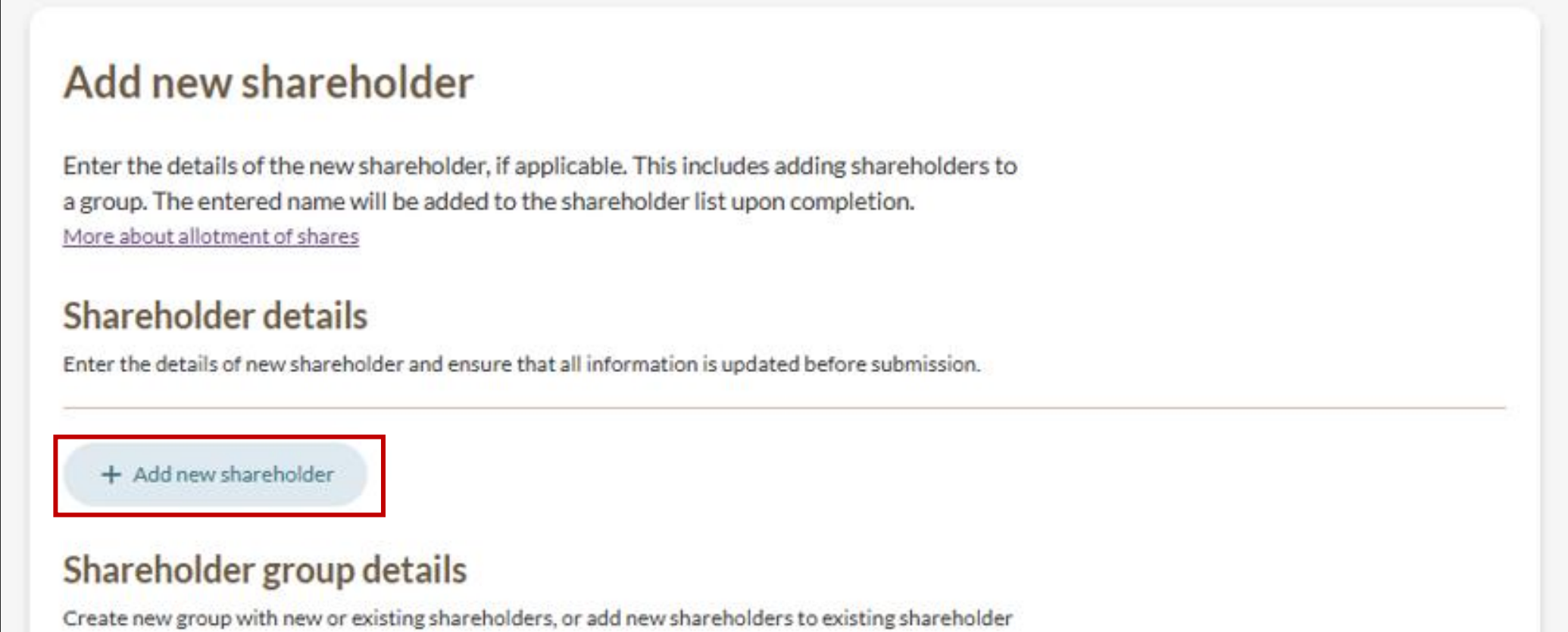
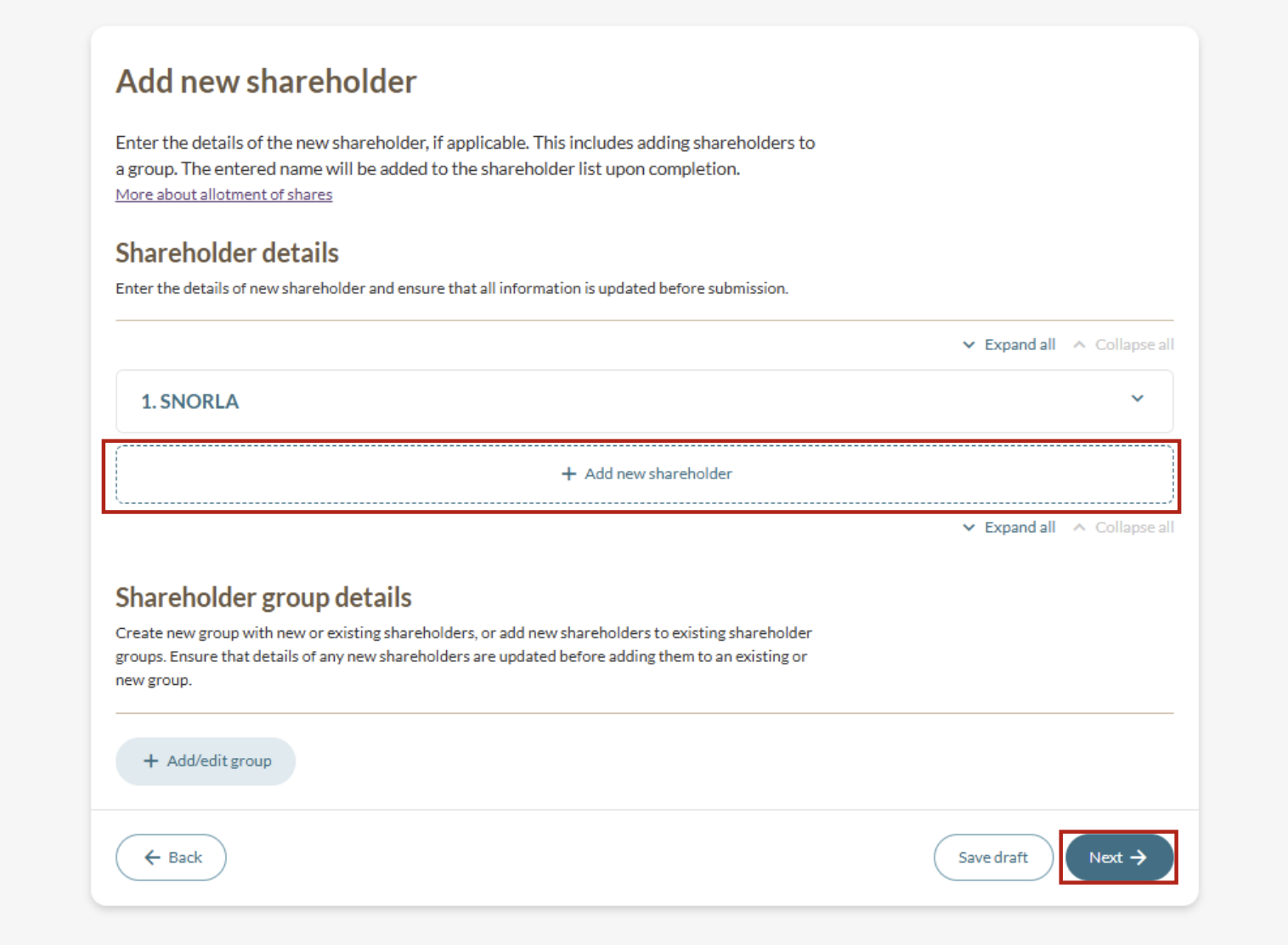
1. Under the "Add new shareholder" section, click "Add new shareholder".
2. (Add individual shareholder) Under "Category", select "Individual" and enter their personal information.
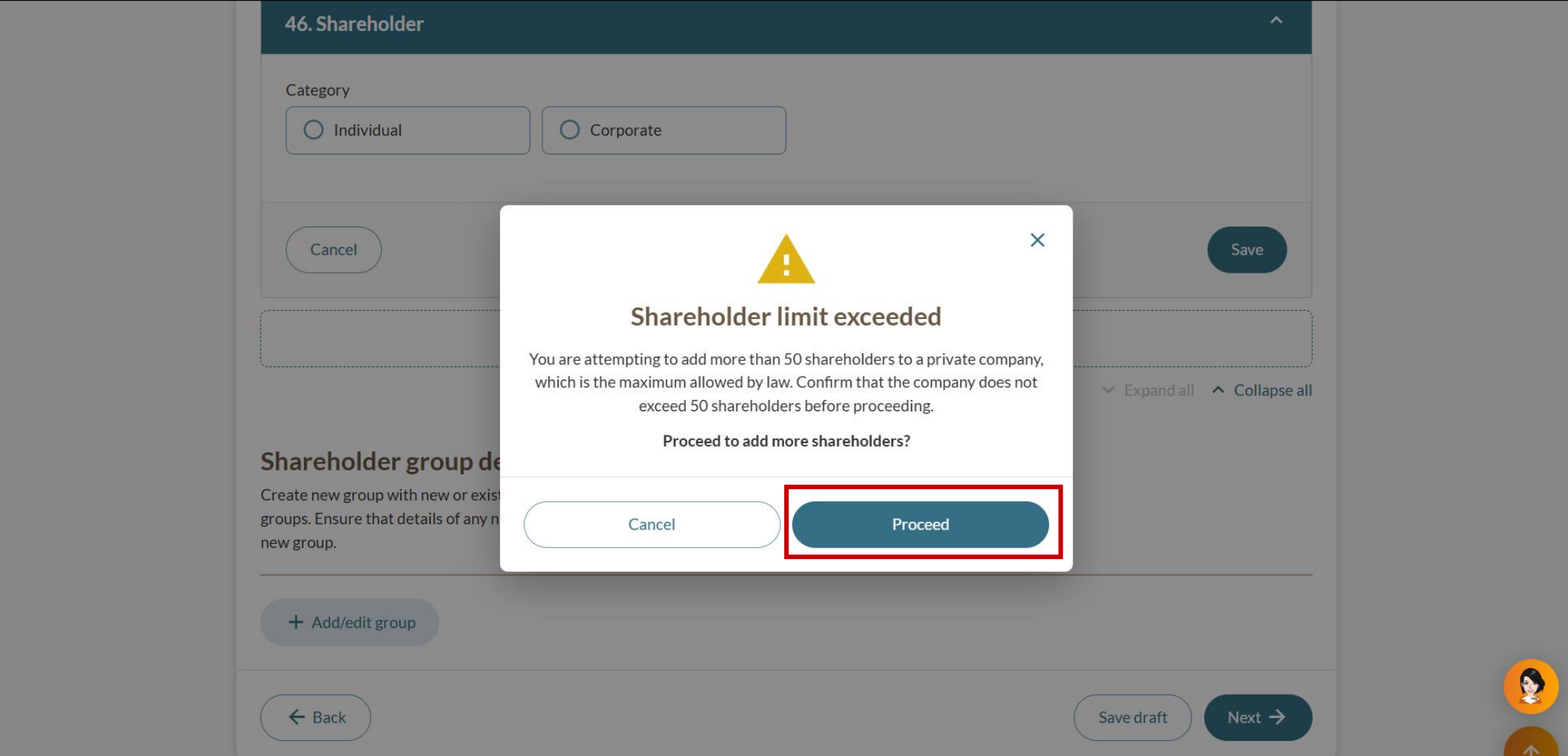
3. (Add individual shareholder) If you are an exempt private company or a private company trying to add more than 50 shareholders (maximum number as allowed by law), you will see a “Shareholder limit exceeded” message. You must confirm that your company remains within the 50-shareholder limit before clicking “Proceed.”
9. To add more shareholders, click "Add new shareholder" and repeat steps 2 to 8. Once you have added all shareholders, click "Next".
4b: Create or edit shareholder groups
Follow these steps to add a new shareholder group or manage shareholders in existing shareholder groups.
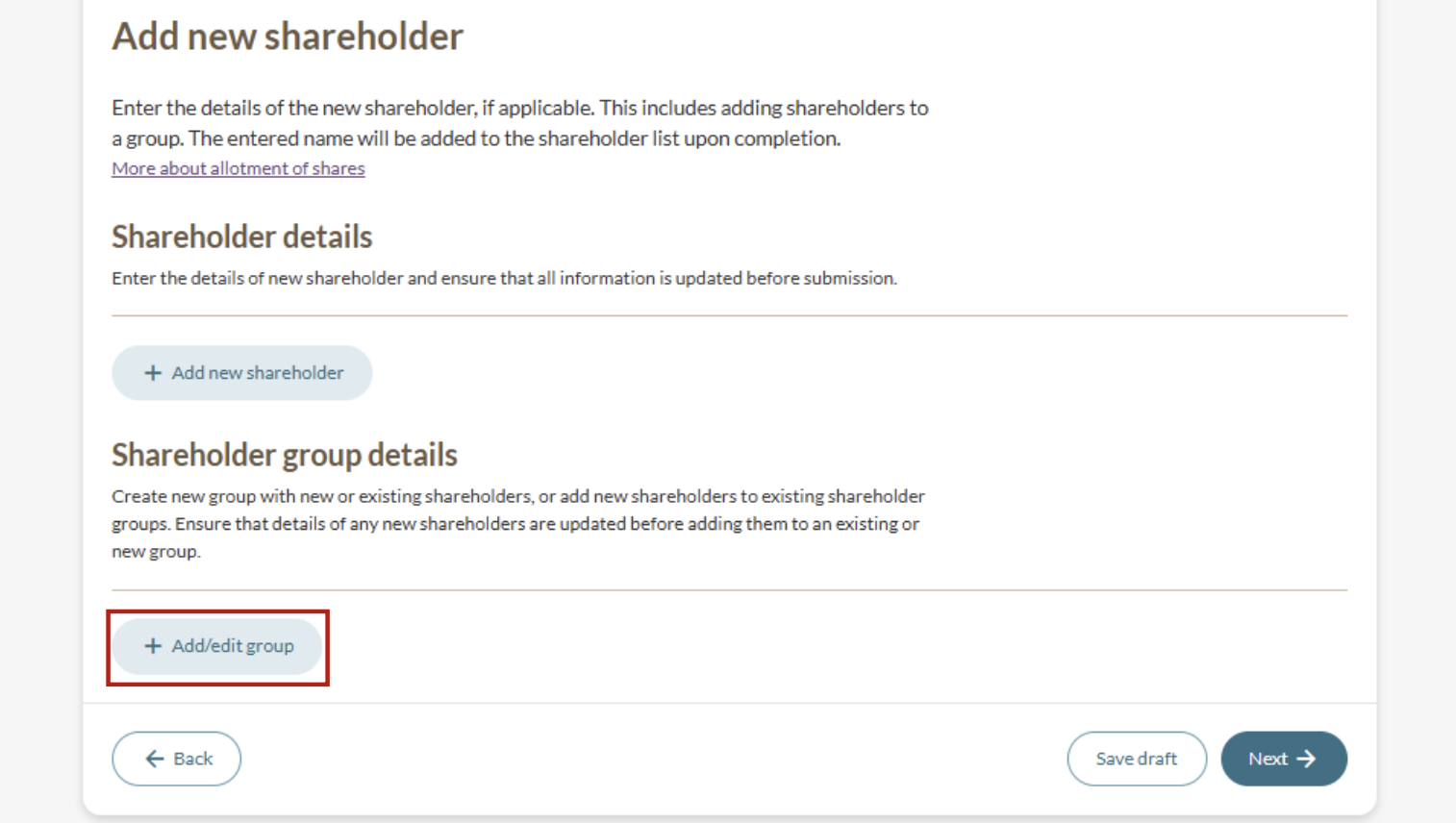
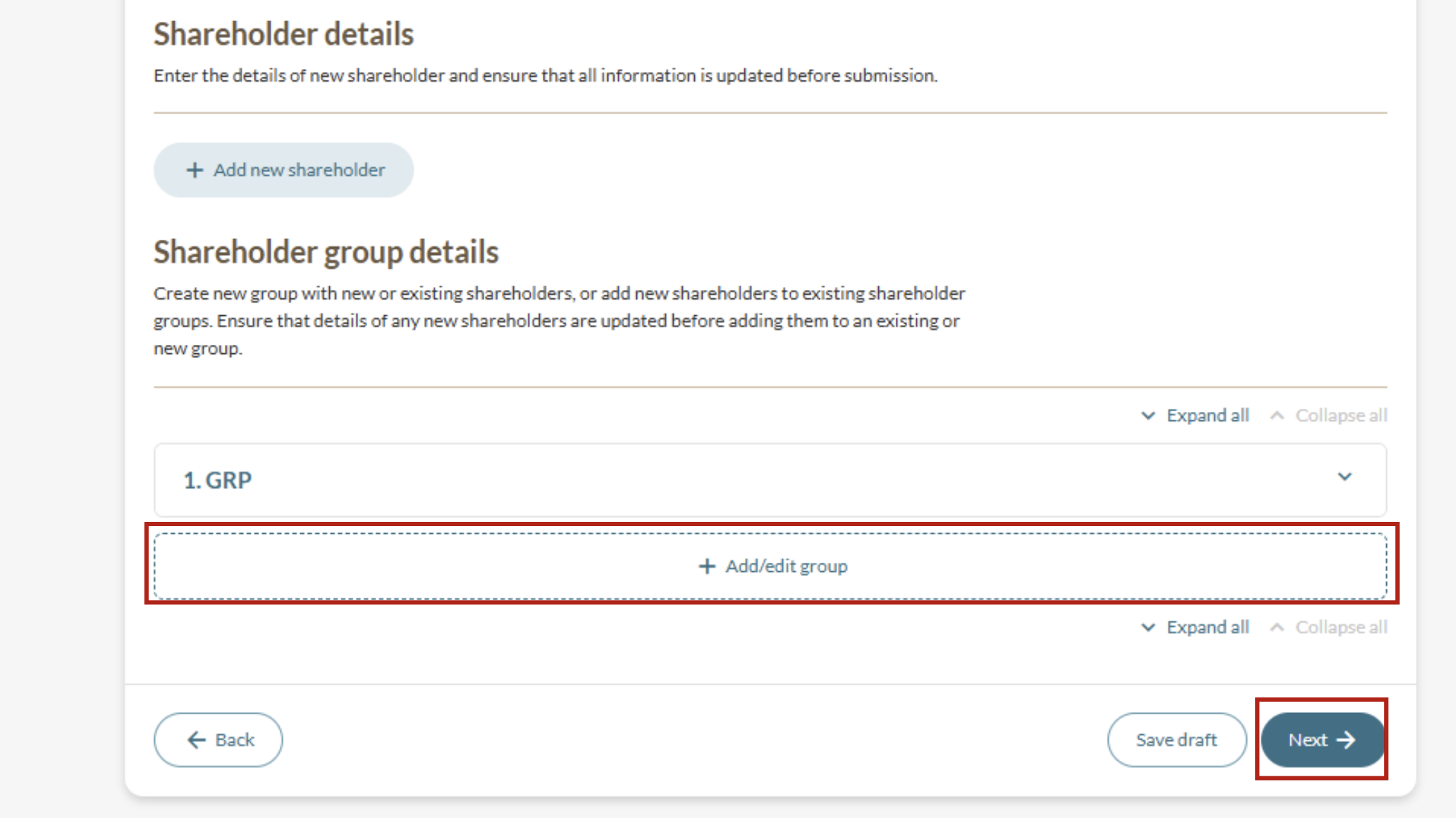
1. Under "Shareholder group details", click "Add/edit group".
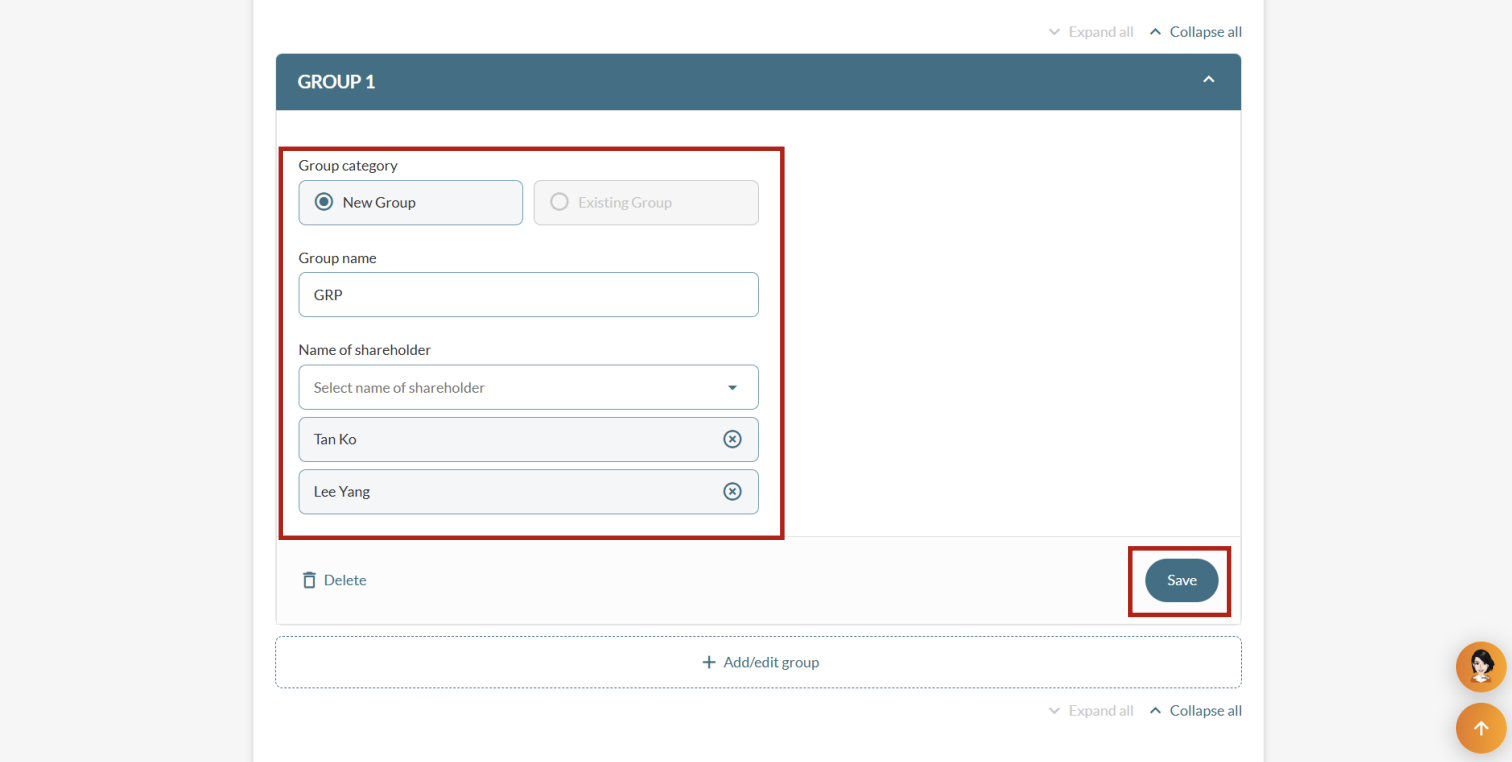
2. (Add a new group) Select “New Group” and enter a group name. Then, select the shareholders for this group. You need to add shareholders individually before you assign them to a shareholder group.
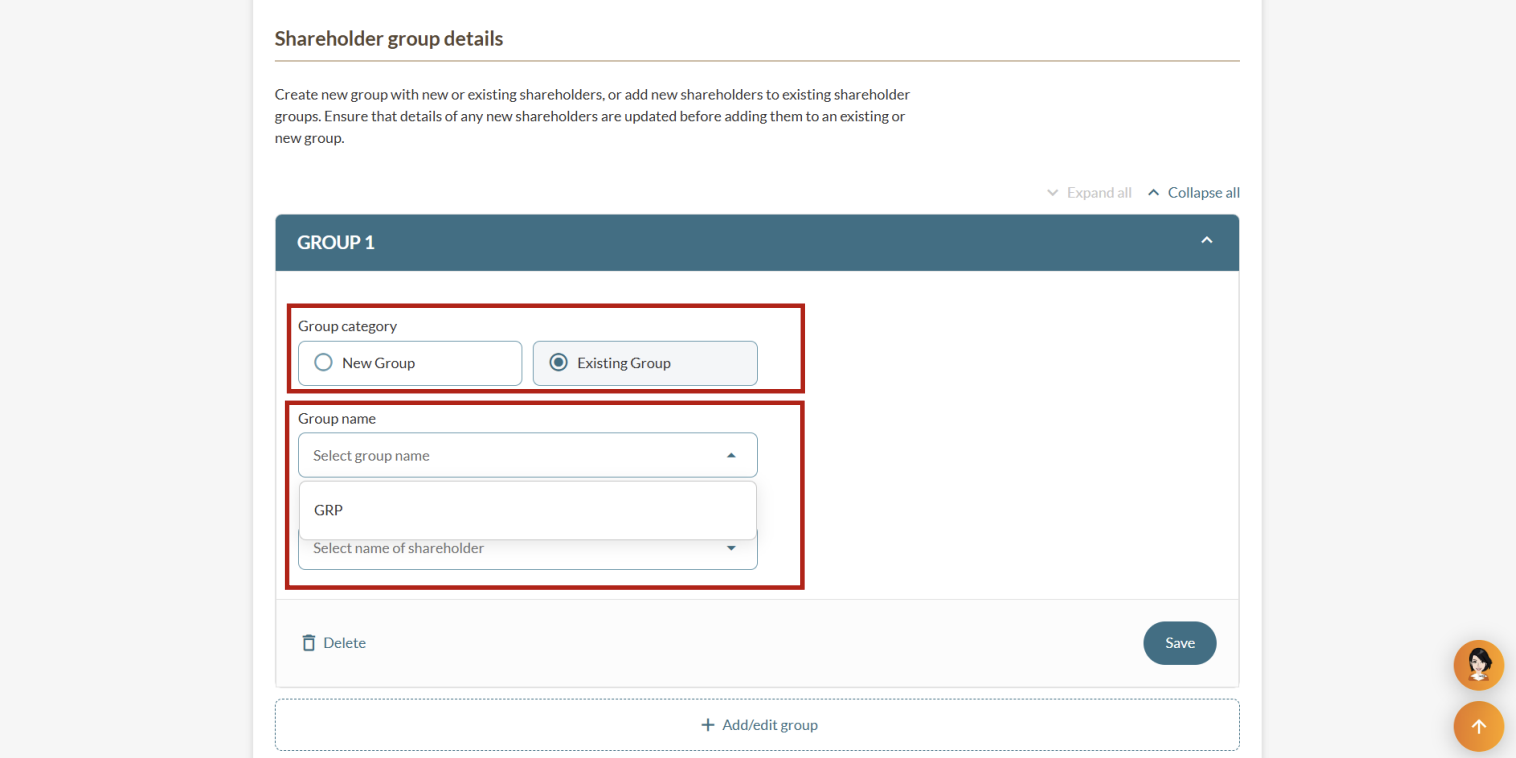
3. (Edit existing group) Select “Existing Group”. Then, under "Group name", select the group you wish to edit.
7. To add more shareholder groups, click "Add/edit group" and repeat steps 2 to 6. Once you have added all groups, click "Next".
Step 5: Enter share allotment details
Each shareholder must either:
Have an individual share allotment; or
Be part of a group share allotment.
Note: The total paid-up share capital for each share class and currency must equal the total amount of paid-up share capital allotted to all shareholders and groups.
5a: Add individual share allotments
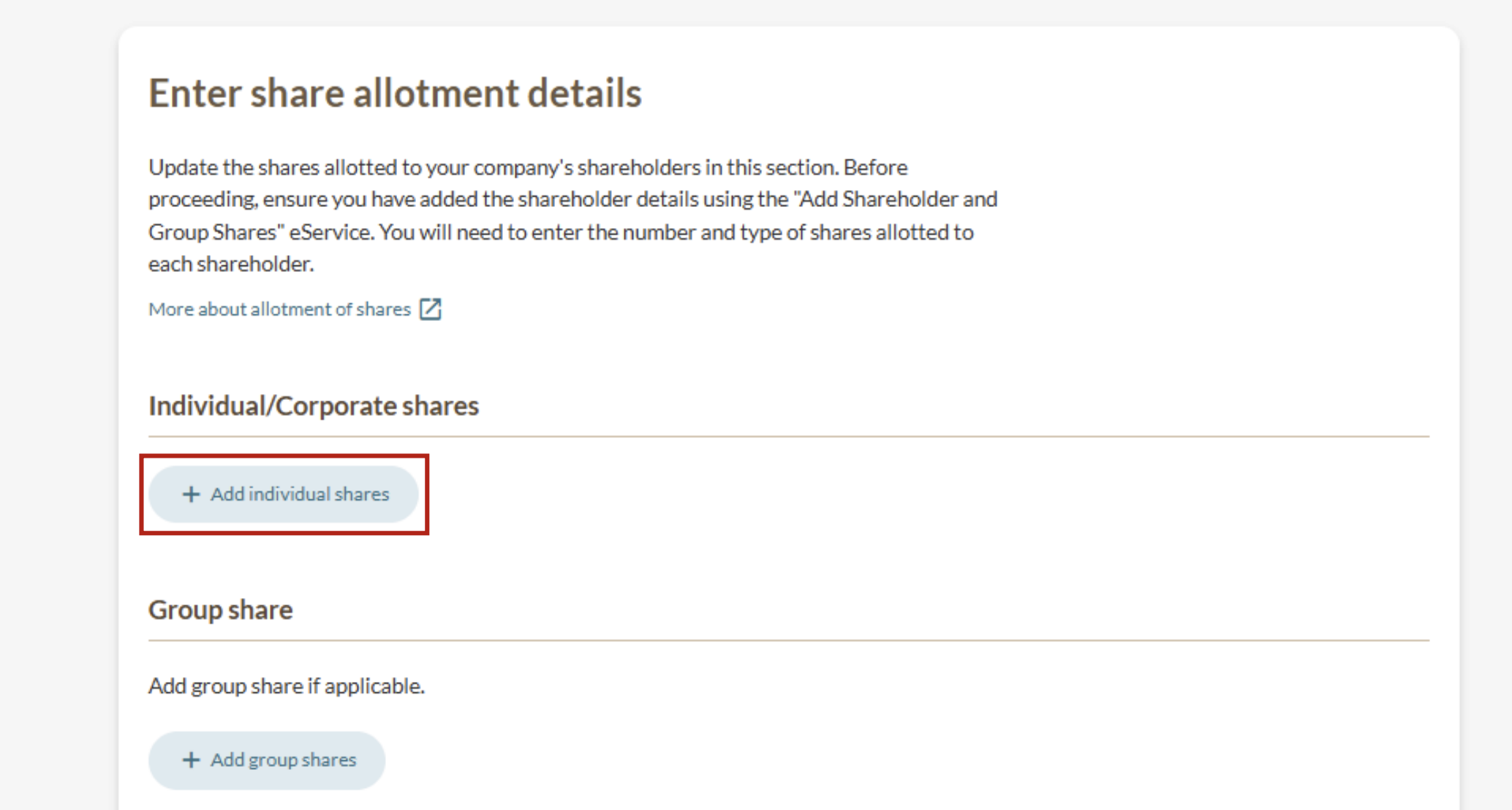
1. On the "Enter share allotment details" page, click "Add individual shares".
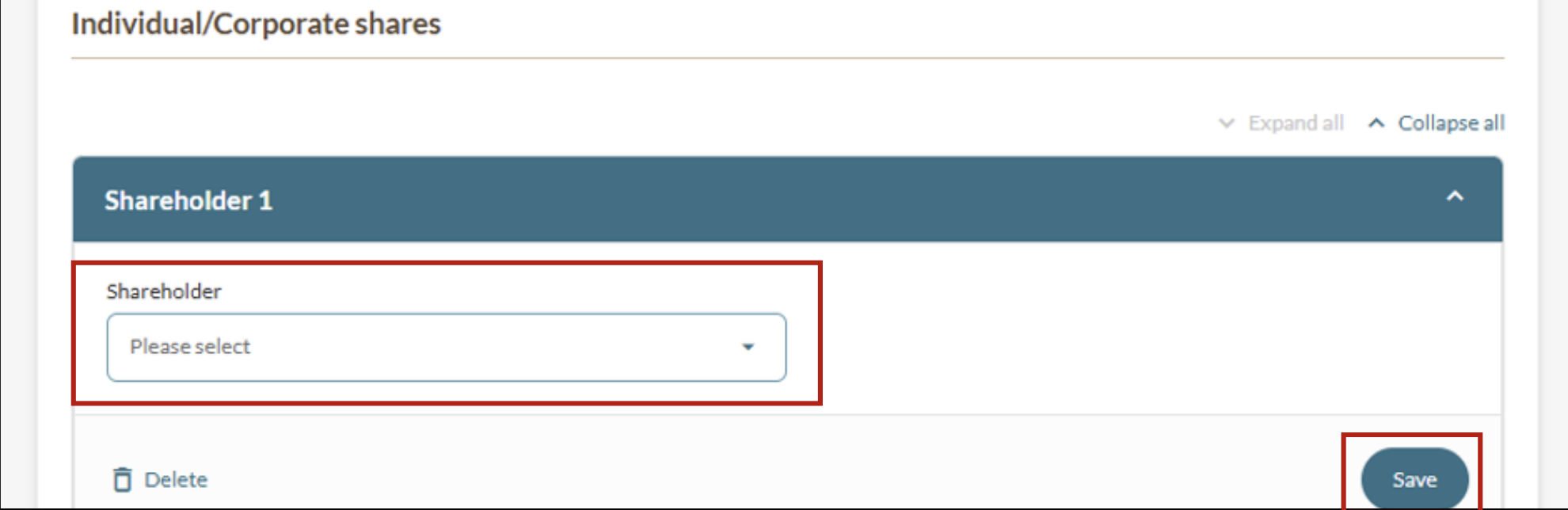
2. Select a shareholder from the dropdown list and click "Save".
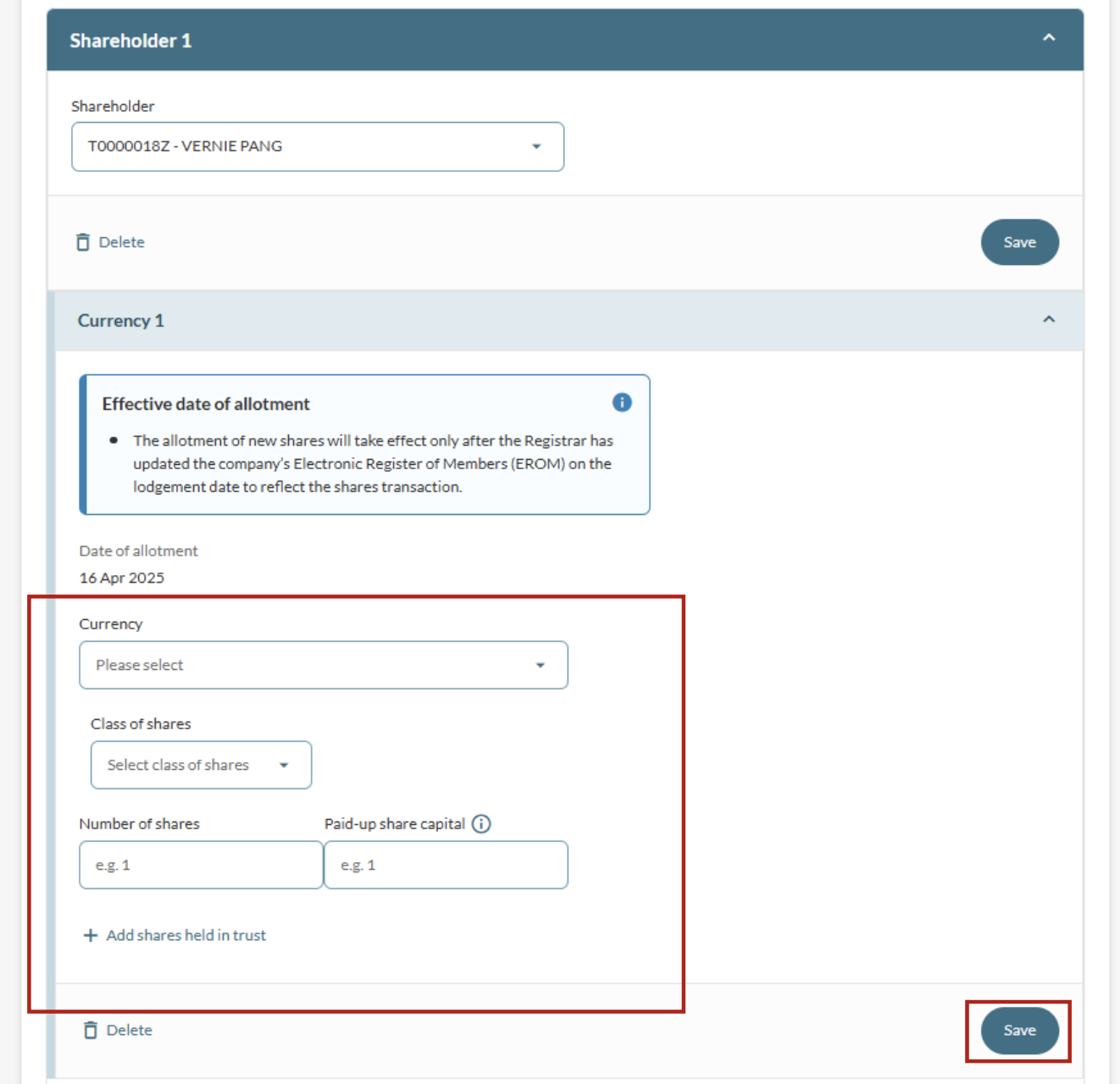
3. Enter the currency, share class, number of shares, and paid-up share capital. Then, click “Save”.
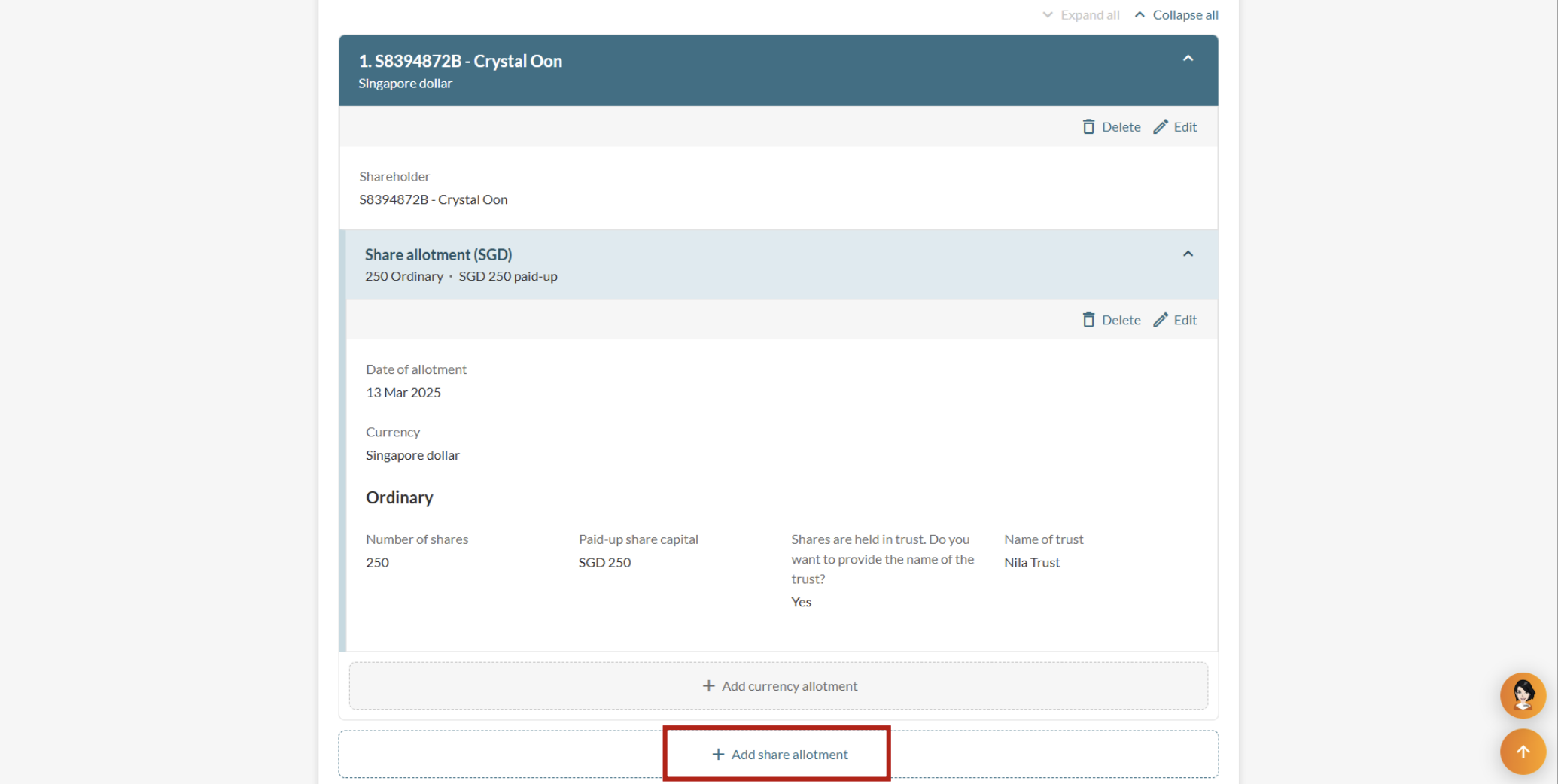
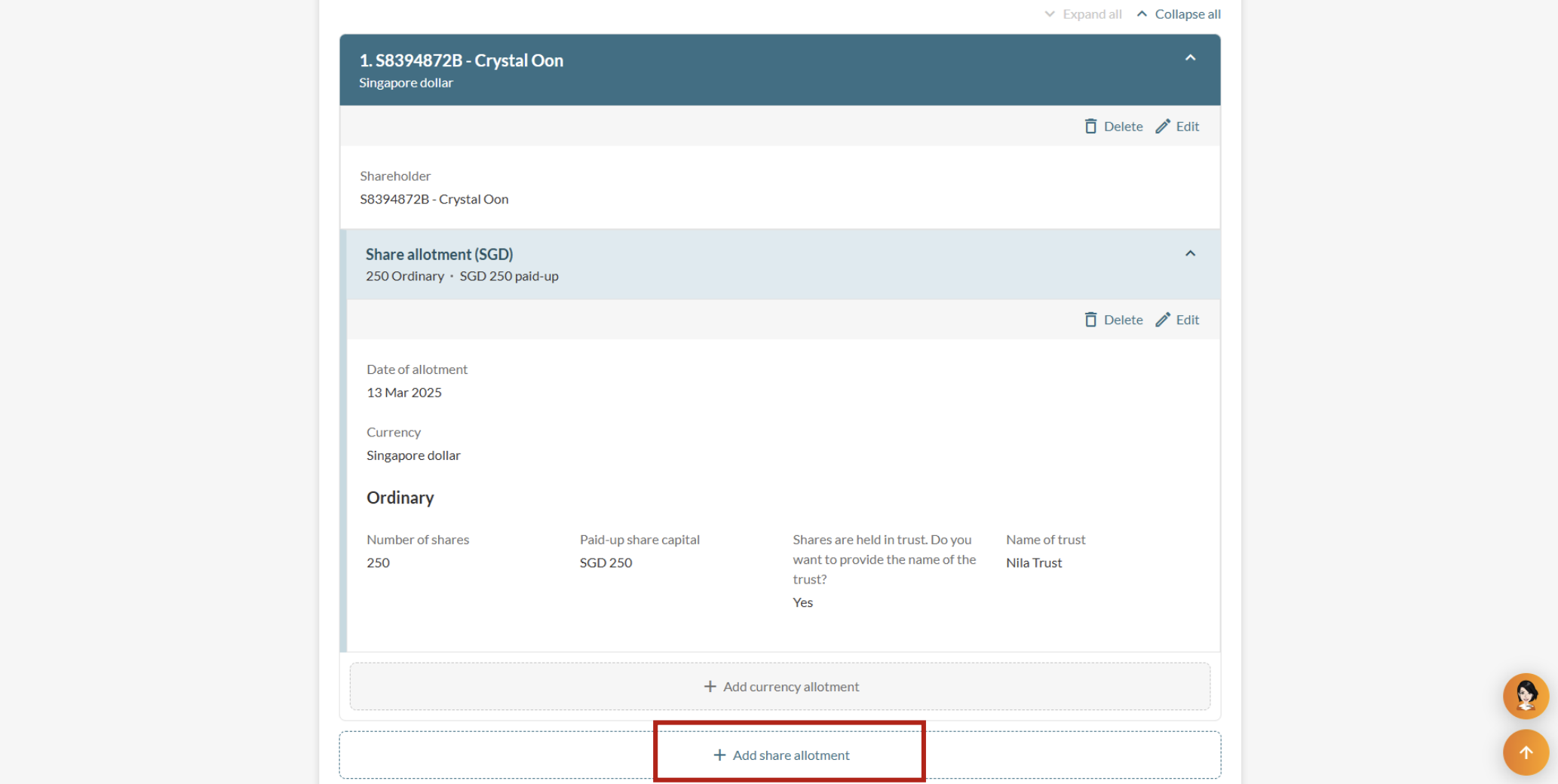
7. To add more share allotments, click "Add share allotment" and repeat steps 2 to 6. Once you have added all allotments, click "Save".
5b: Add group share allotments
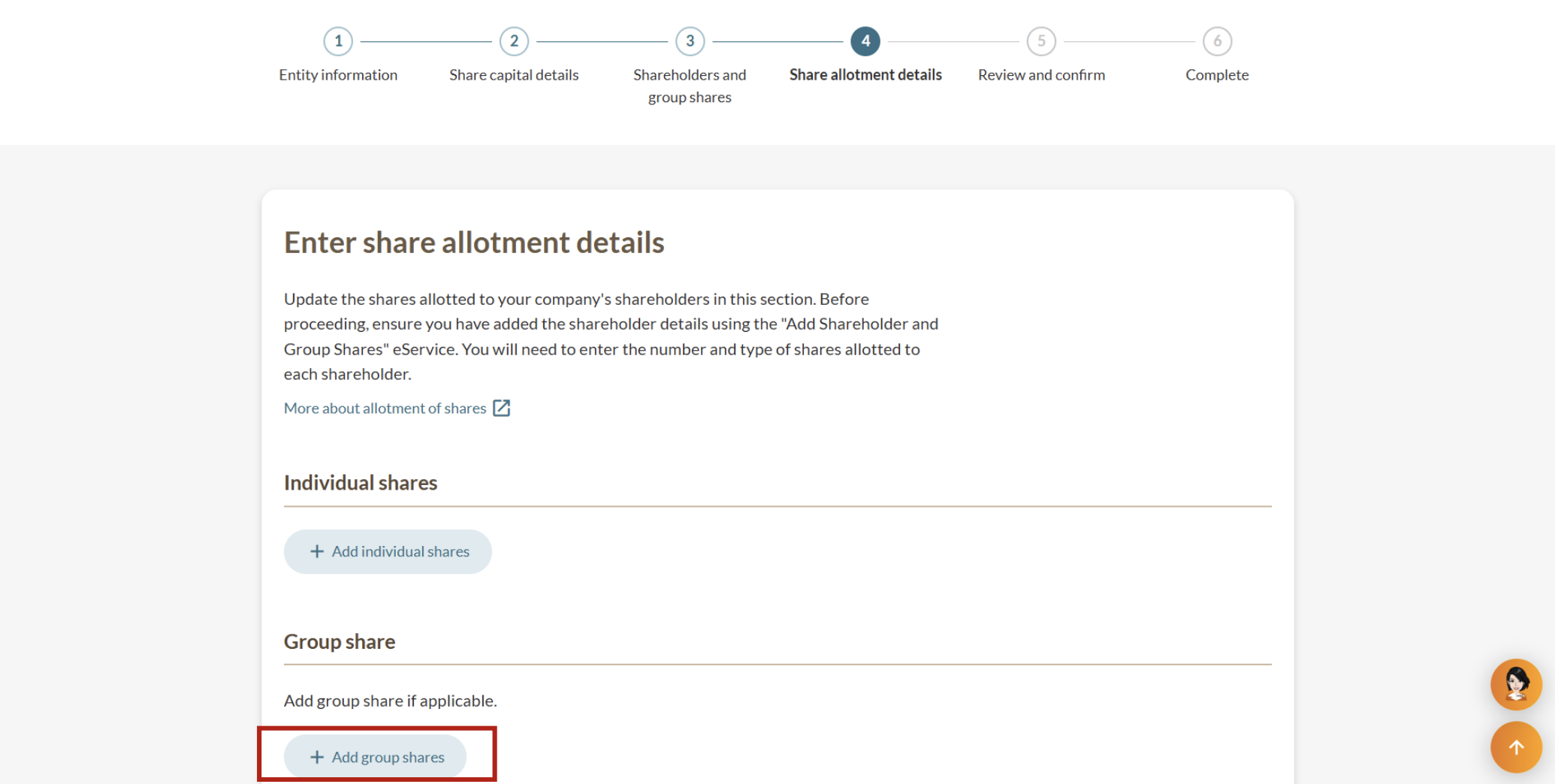
1. On the "Enter share allotment details" page, click "Add group shares".
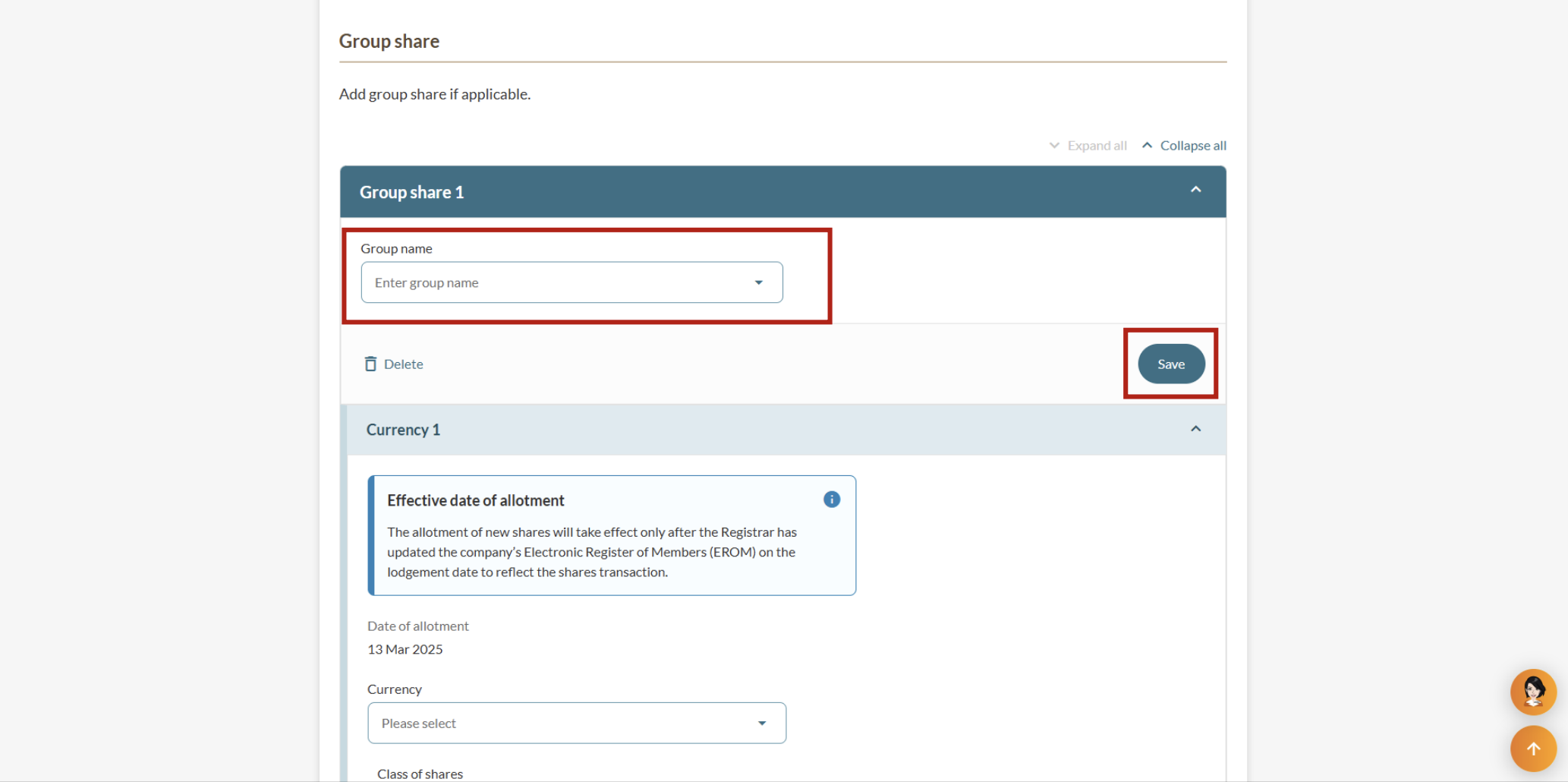
2. Select the group from the dropdown list and click "Save".
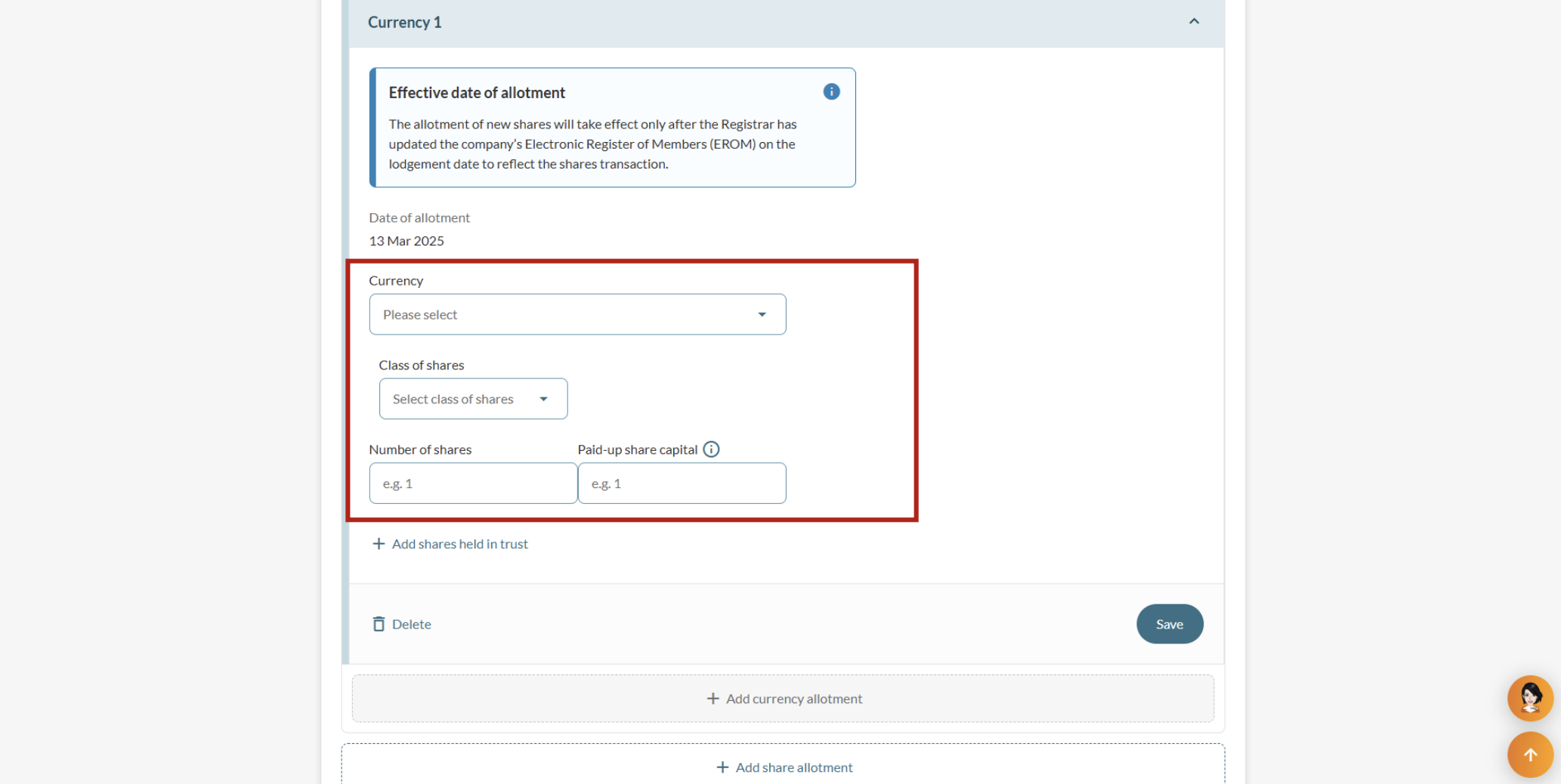
3. Enter the currency, share class, number of shares and paid-up share capital.
7. To add more share allotments, click "Add share allotment" and repeat steps 2 to 6. Once you have added all allotments, click "Save".
Step 6: Review and submit your application
After you update your share allotment details, check your information before you submit it.
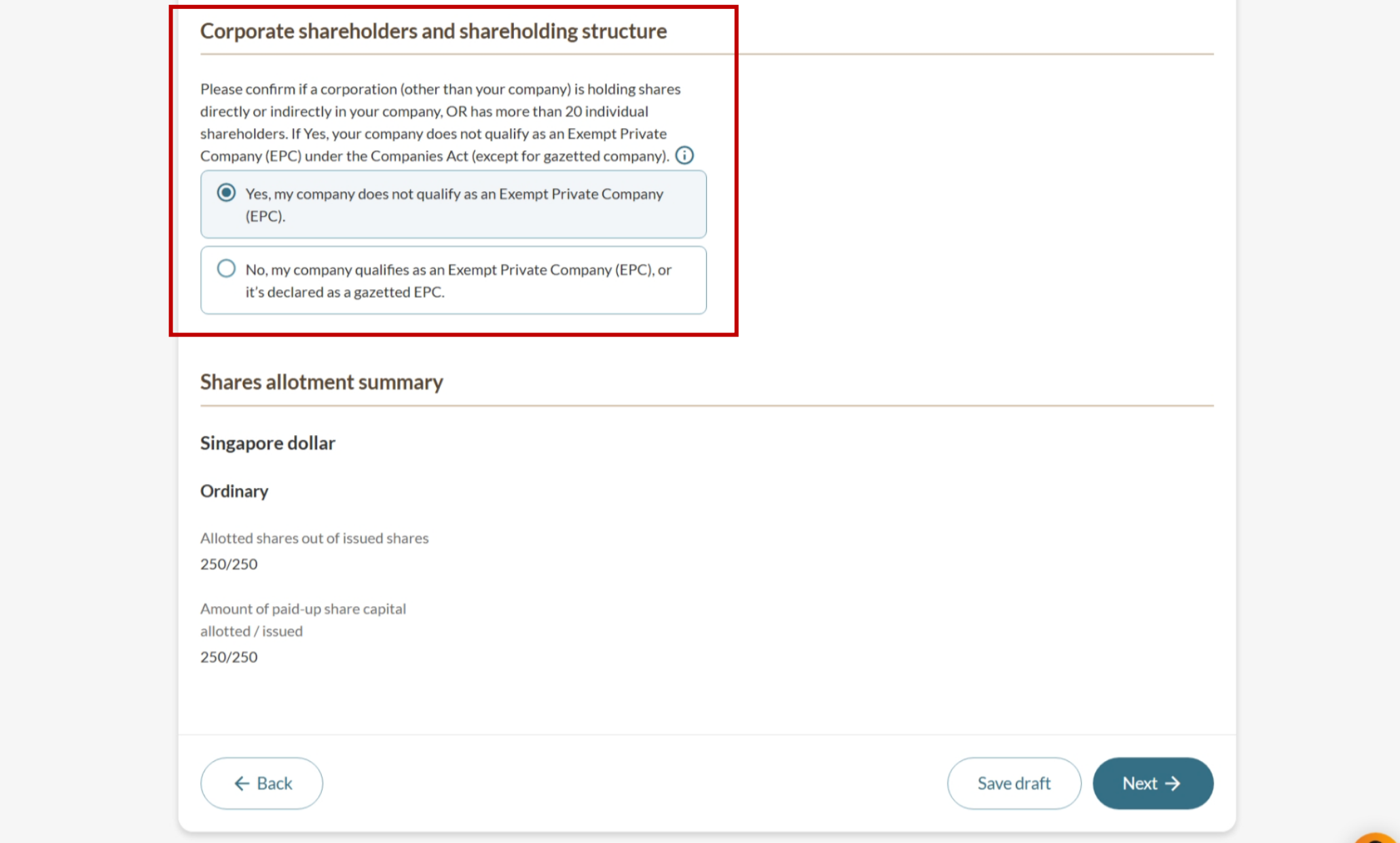
1. (Added new shareholders) State whether the shares are held directly or indirectly by any corporation. Then, review the shares allotment summary carefully. Once all shares have been allotted, click "Next".
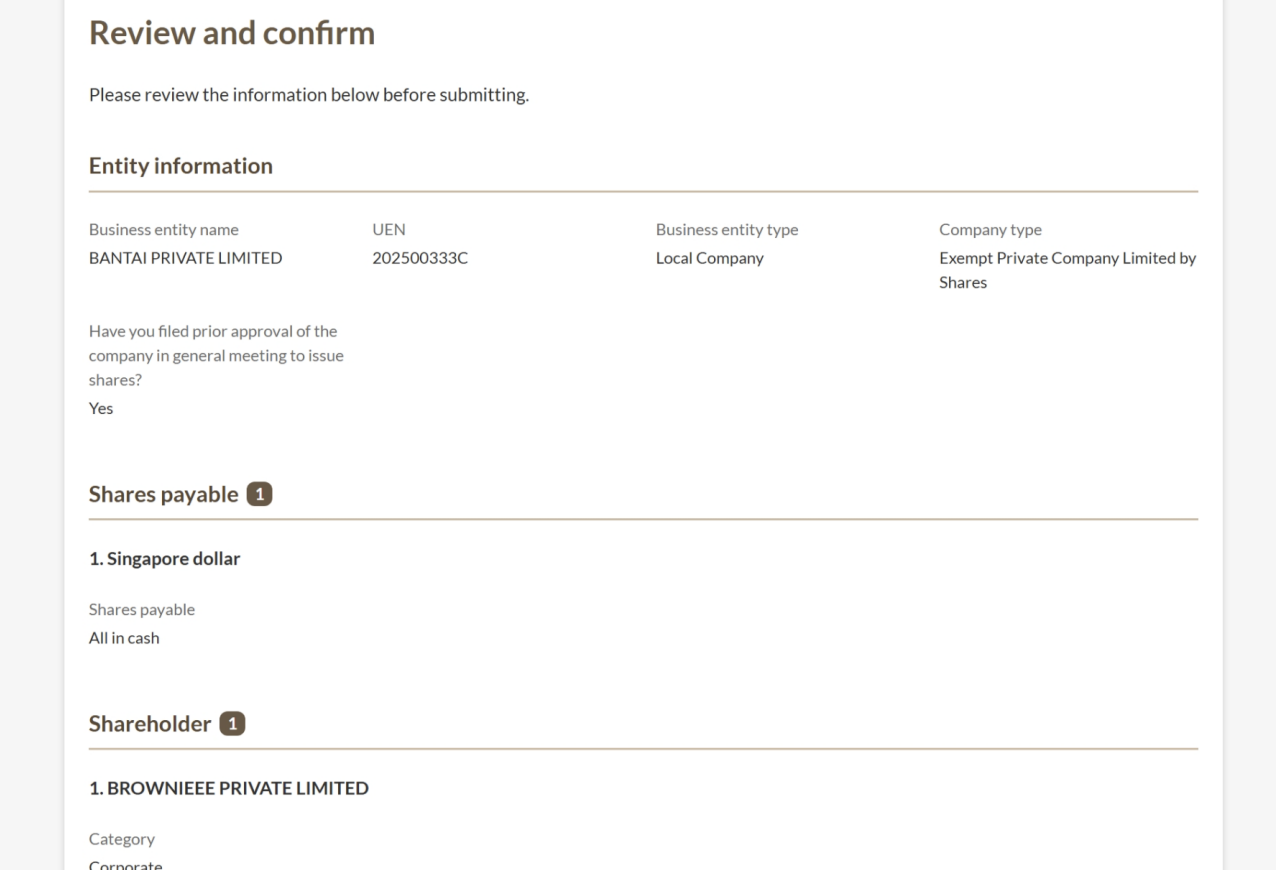
2. On the "Review and confirm" page, check that you have entered all information correctly.
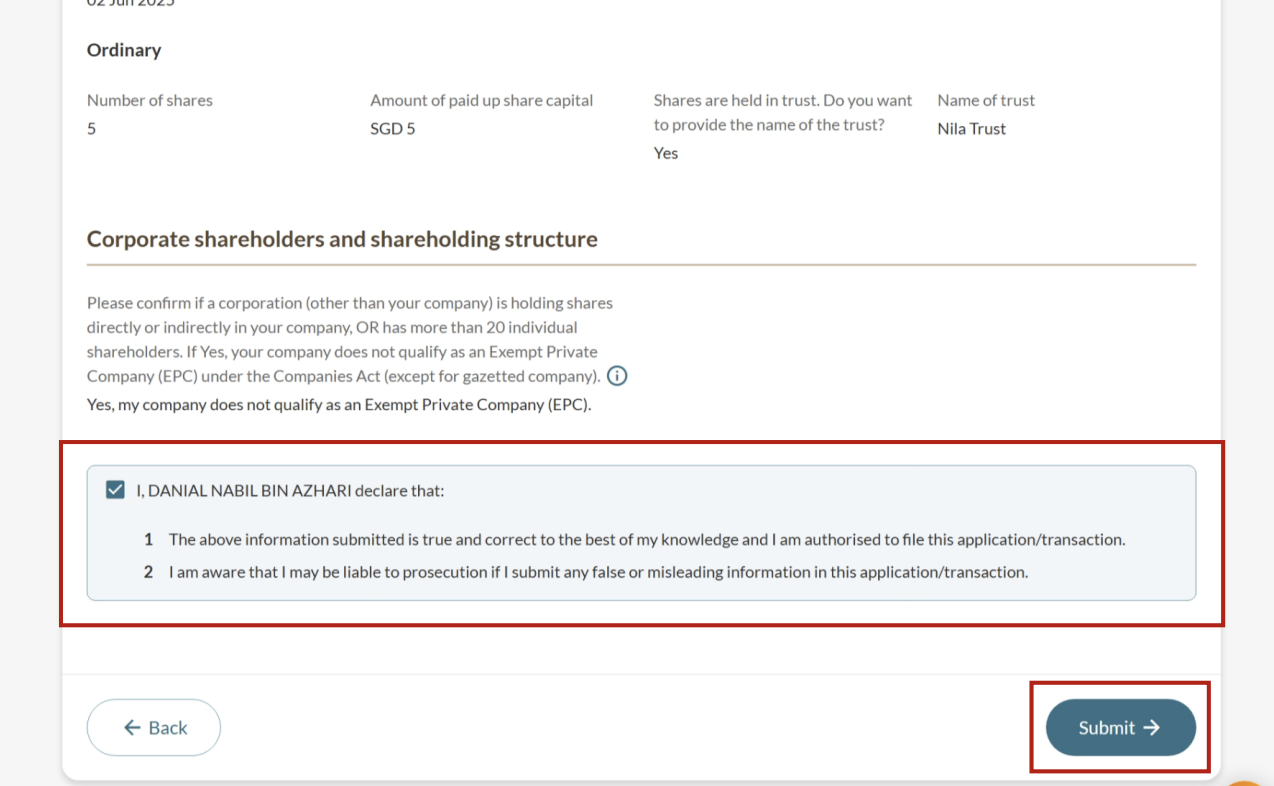
3. Tick the declaration checkbox and click "Submit".
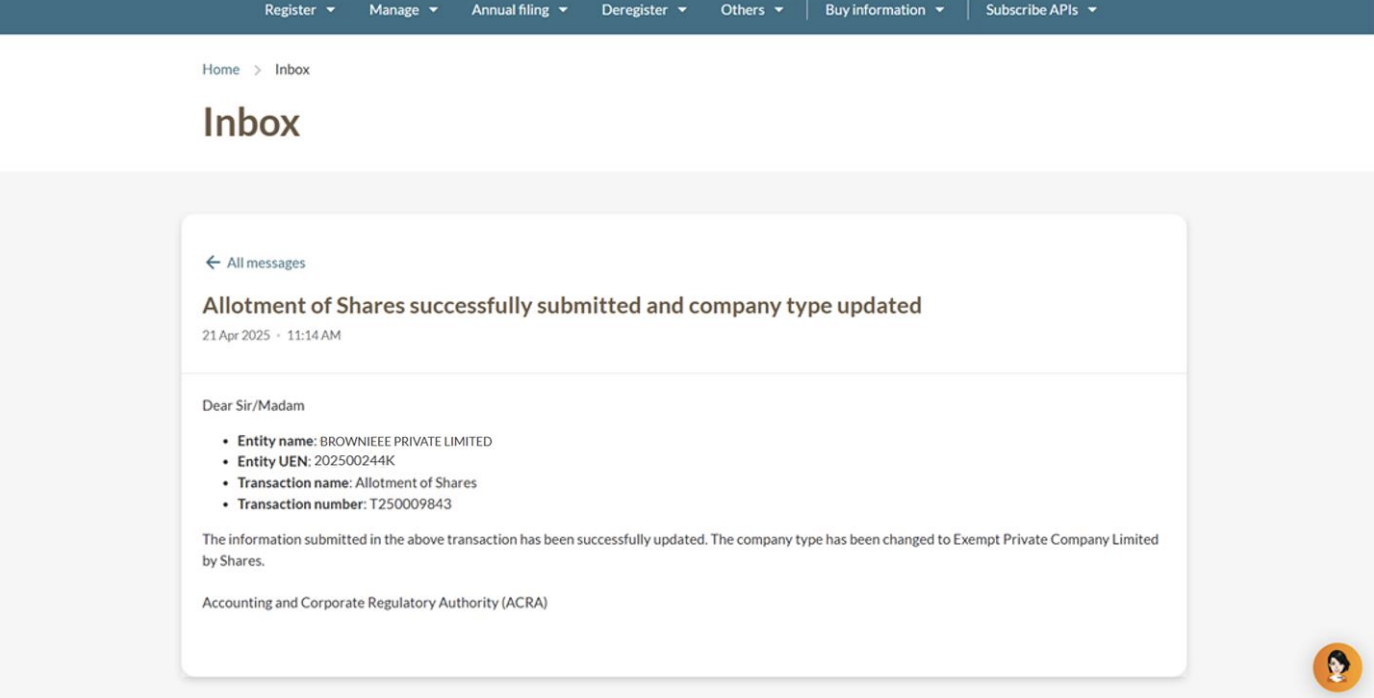
5. You will also receive a Bizfile notification that confirms the updated allotment.